
Fixing Microsoft Office 2016 Error 0-1005: Administrative Privileges Required
Originally published: 2018
Updated: 2026
Archive status: Recovered
Archive Note
This article is based on recovered DigiDope source material and has been updated in 2026 for clarity, formatting, and readability while preserving the original issue and resolution.
Problem
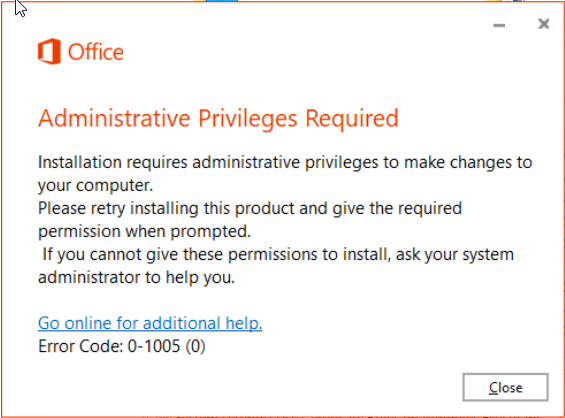
During installation of Microsoft Office 2016 on a freshly deployed Windows system, the installer returned the following message:
Administrative Privileges Required – Error Code: 0-1005 (0)
At first glance, the message makes very little sense. The installation was already being attempted while logged in with administrative credentials, including a domain administrator account.
Environment
The issue was observed under the following conditions:
- Brand new computer
- Clean installation of Windows 10 Pro
- Latest security updates applied
- System joined to the domain
- UAC left at default settings
- Installation launched from setup.office.com
- User logged in with domain administrator credentials
Symptoms
The Office installer would fail with the same privileges-related message even though the account used should already have had the required rights.
This made many of the common troubleshooting suggestions unhelpful. Repair options were irrelevant because Office was not yet installed, and the usual advice did not address the actual cause.
Cause
The issue was tied to local security policy, specifically the handling of Admin Approval Mode for the built-in Administrator account.
Even though the account used had elevated rights, the relevant User Account Control behavior was not configured in a way that allowed the installer to proceed properly in this case.
Resolution
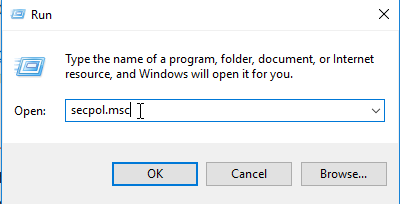
Open the Local Security Policy editor:
secpol.msc
Then navigate to:
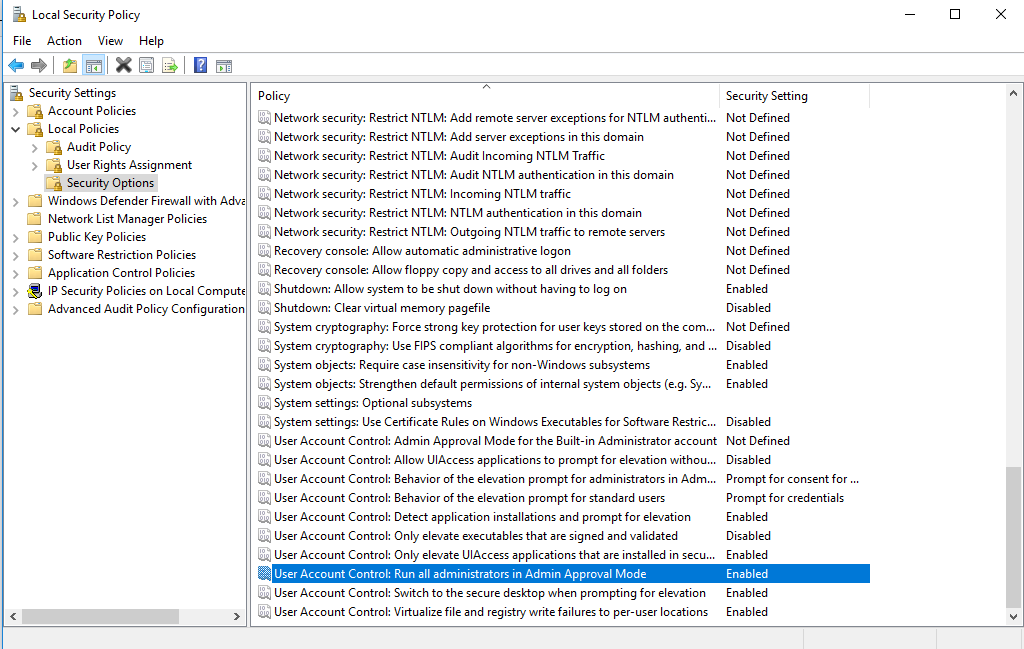
Local Policies → Security Options
Locate the setting:
User Account Control: Admin Approval Mode for the Built-in Administrator account
Change the setting from Undefined or Disabled to:
Enabled
Reboot the machine, then run the Office setup again.
Why this fix matters
This is one of those Windows issues where the error message sounds straightforward, but the actual cause lives in a policy setting that many administrators would not immediately associate with Office installation.
That is what makes it useful archive material: it documents a fix that is specific enough to solve a real problem, but obscure enough that many admins can waste a lot of time before finding it.
Context (2026)
Office 2016 itself is no longer current, but the broader lesson still holds up well: Microsoft installer and privilege behavior can be affected by local policy and UAC configuration in ways that are not obvious from the error message alone.
That makes this article still useful as a troubleshooting pattern, even if the exact software version is older.
2026 Editor’s Note
The original article had a more conversational tone and focused on quickly eliminating frustration for the admin hitting this error. In this updated version, the fix has been preserved, but the structure has been expanded to make the cause, environment, and resolution easier to follow for modern readers.
Related Reading
- Fixing SMB Permission Issues in Modern Windows Environments
- Citrix Delivery Services Console: “An error occurred” in XenApp 6
- Cloud vs On-Prem in 2026: Practical Considerations